Replenishment Item Exclusion Rule is a tool that helps you define one or more criteria to exclude matching retail items from replenishment. Each Replenishment Item Exclusion Rule can be defined up to the Product Group level and can be based on factors like items created before a certain date, no item sales since a certain date, and items with zero inventory.
Example
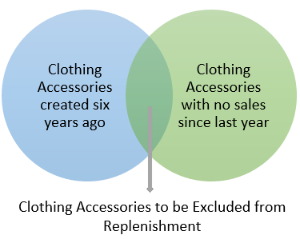
Six years ago you introduced a range of clothing accessories, some of which you discontinued selling last year. Therefore, you do not want any further replenishment for those items. If there are only one or two such items, you might go to the individual Retail Item Card and select the Exclude From Replenishment box. If, however, this involves a bulk of items, setting this option manually, one by one, would be a tedious job. Using Replenishment Item Exclusion Rule, you can define the exclusion criteria and let the system set the Exclude From Replenishment to TRUE for all items matching the criteria.
To set up the Replenishment Item Exclusion Rule
- Navigate to LS Retail - Replenishment - Automatic - Administration - Replen. Item Exclusion Rules.
- Click New on the Home action menu to create a new item exclusion rule, or the Edit List action to modify an existing one.
- Set up the exclusion criteria using the following table fields:
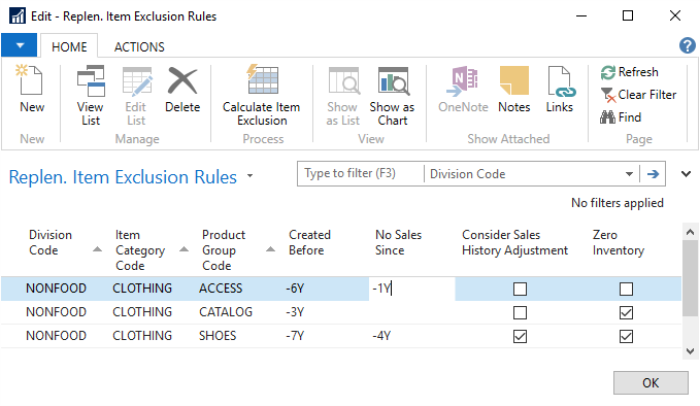
| Field | Description |
|---|---|
| Division Code | This field specifies the Division Code to filter the items to be excluded from replenishment. |
| Item Category Code | This field specifies the Item Category Code to filter the items to be excluded from replenishment. |
| Product Group Code | This field specifies the Product Group Code to filter the items to be excluded from replenishment. |
| Created Before | This field specifies the date formula to calculate the date, before which, any item created will be filtered to be excluded from replenishment. The date calculation is always based on the work date. For example, if the work date is 10-06-2019 and the Created Before field is set as -1Y, then the items created before 10-06-2018 will be filtered to be excluded from replenishment. Note: This is a mandatory setting and does not accept a positive date formula, that is, the calculated date cannot be after the work date. |
| No Sales Since | This field specifies the date formula to calculate the date, from which, if an item has no sales until the work date, the item will be filtered to be excluded from replenishment. For example, if the work date is 10-06-2019 and the No Sales Since is set as -1M, then the items with no sales from 10-05-2019 to 10-06-2019 will be filtered to be excluded from replenishment. |
| Consider Sales History Adjustment | This field specifies whether the Sales History Adjustment quantity for the item will be considered when calculating its sales quantity. This setting can be activated only if the No Sales Since is defined. |
| Zero Inventory | This field specifies whether items with zero inventory will be filtered to be excluded from replenishment. |
Note: An item will be excluded from replenishment only if it matches all the criteria set up under the rule. For example, if for a rule, you have activated the No Sales Since and Zero Inventory settings, together with the mandatory Create Before setting, then only the items matching all three criteria will be excluded from replenishment.
To exclude items from Replenishment based on the Item Exclusion Rules
- Navigate to LS Retail - Replenishment - Automatic - Administration - Replen. Item Exclusion Rules.
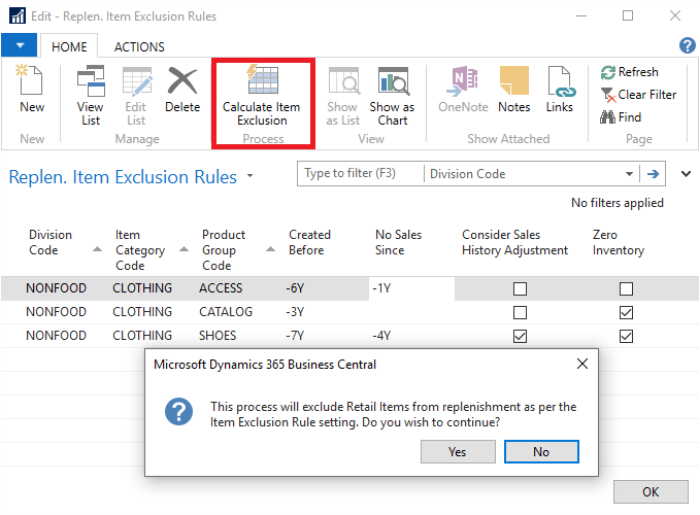
- Click Calculate Item Exclusion on the Home action menu.
- A confirmation message is displayed. Click Yes to continue.
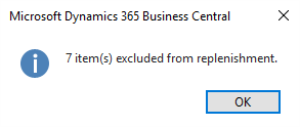
- Upon successful completion, this message is displayed:
Note: This functionality only helps to set the Exclude from Replenishment for an item to TRUE, but cannot be used to reverse the setting. For example, if an item does not match one of the setup criteria, this function will skip that item; it will not set Exclude from Replenishment for that item to FALSE if the original setting is TRUE.
See Also